
TL;DR
- Do not summarize every bullet in a PowerPoint deck. Pull out the structure, main ideas, key terms, diagrams, examples, and likely test points.
- A good PowerPoint summary for studying should become notes, flashcards, quiz questions, and review tasks.
- To summarize lecture slides well, group slides by topic instead of copying them slide by slide.
- AI can create a first draft, but you still need to verify the output against the original slides.
- Cramd's AI PDF summarizer and AI flashcard generator can help turn exported slides into study material faster.
Introduction
You open a 60-slide lecture deck and feel your brain bargain with itself. Maybe you can just reread the slides twice. Maybe the bold words are enough. Maybe the exam will only ask what is on the screen.
Usually, no.
Learning how to summarize a PowerPoint presentation is not about shrinking 60 slides into 20 slides. For students, the goal is to turn a deck into something you can actually study: main ideas, missing context, notes, flashcards, quiz questions, and review tasks.
Here is the simple way to think about it:
| Slide type | What to pull out | Study output |
|---|---|---|
| Title slide | Main topic and course unit | One-line purpose |
| Agenda slide | Section themes | Study outline |
| Concept slide | Key definition or idea | Short note or flashcard |
| Diagram slide | Labels and relationships | Explain-from-memory prompt |
| Data/chart slide | Trend or takeaway | Practice question |
| Recap slide | Instructor's summary | Mini quiz |
This guide shows you how to summarize slides for an exam in seven steps, whether you have a PPTX file, lecture slides, or a PDF export.

Why PowerPoint Slides Are Hard to Summarize
Slides are designed for presenting, not studying
PowerPoint slides are usually built to support a lecture, not stand alone. A slide may include only the short version: a phrase, diagram, chart, or a few bullets. Your summary has to rebuild the missing context.
Bullet points often hide the real explanation
Bullet points can look complete even when they are only labels. "Causes of inflation" is not a summary. It is a topic. A useful summary explains what the slide is teaching and what question it could become.
Diagrams and charts need translation into words
Visual slides seem self-explanatory, but they usually need translation. If a diagram shows a process, write the process in words. If a chart shows a trend, name what changed.
South Dakota State University's guide to studying from PowerPoint presentations recommends using slides as a base for summaries and flashcards, not just rereading them.
Step 1: Skim the Presentation for Structure
Read the title, agenda, section headers, and recap slides
Start with the map before the details. Look at the title slide, agenda, section dividers, recap slides, and learning objectives. Write a quick outline before you touch the smaller bullets.
Group slides by topic, not slide number
When you summarize PPT slides, do not treat every slide as equal. Slides 1-8 might explain one concept, while slides 9-12 might be an example. Grouping by topic keeps the summary from becoming one giant list.
Mark slides that look exam-relevant
Some slides deserve extra attention: definitions, formulas, labeled diagrams, repeated terms, worked examples, and recap slides. If your instructor said "know this," put that slide near the top.
Step 2: Identify the Main Idea of Each Section
Write one sentence per section
For each topic group, write one sentence that explains the main idea. Example: "Glycolysis is the first stage of cellular respiration, where glucose is broken into pyruvate."
That sentence becomes the backbone of your PowerPoint to study guide workflow.
Separate core ideas from supporting details
Not every bullet needs to survive. Keep details that help you answer exam-style questions, and cut the ones that only make the summary longer.
Step 3: Pull Out Key Terms, Processes, and Examples
Turn definitions into simple notes
Definitions are easy to copy and easy to forget. Rewrite the term in plain language, then add one example or one "why it matters" note.
Turn processes into ordered steps
If the presentation explains a process, summarize it in order. Use numbered steps for cycles, pathways, timelines, or problem-solving methods. Then turn the steps into questions.
Turn examples into application prompts
Examples show how the idea works. When you see one, ask: "What concept is this proving?" Then write a prompt like, "How would I apply this to a new example?"
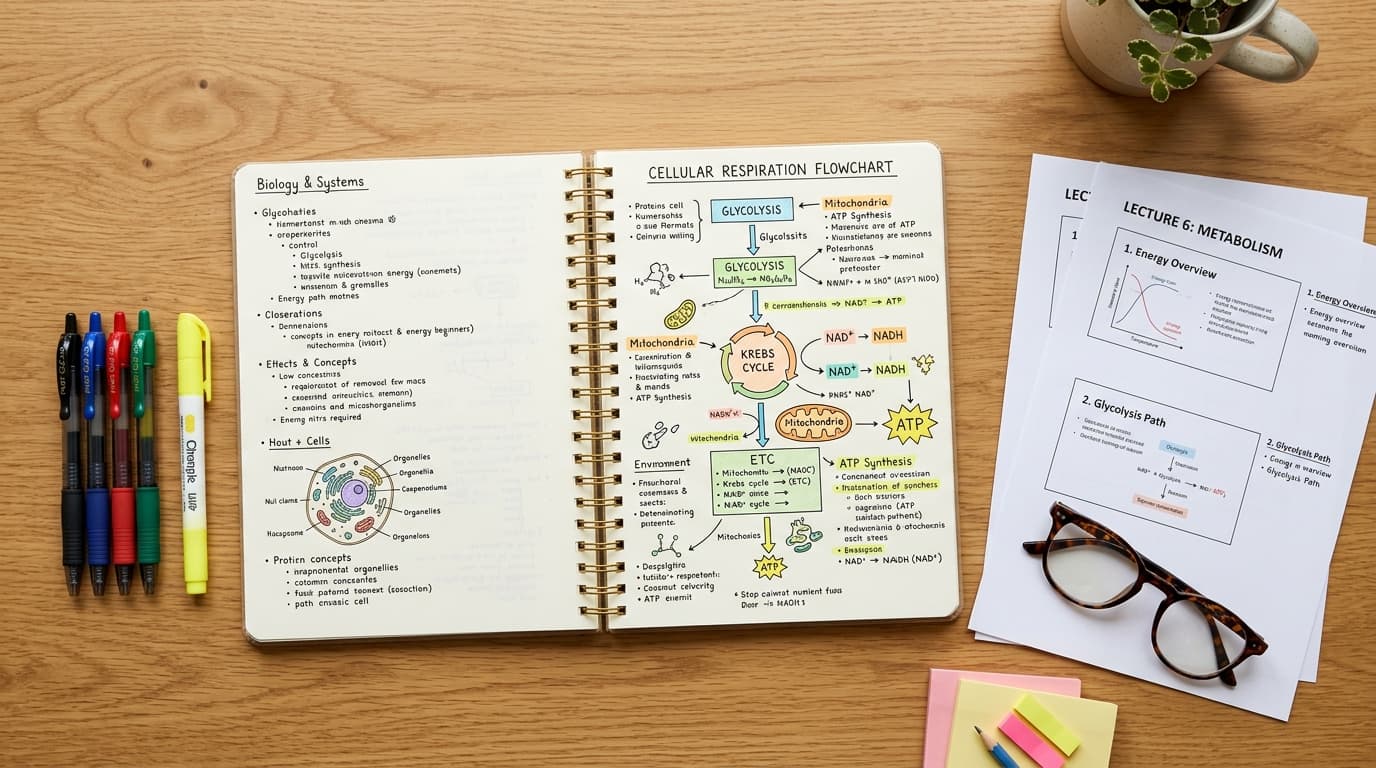
Step 4: Summarize Diagrams, Charts, and Images
Explain what the visual is showing
A diagram summary should answer one question: what is this visual teaching me? Do not only copy labels. Explain the relationship between them.
Capture labels, relationships, trends, and cause-effect links
For charts, write the trend. For diagrams, write the relationship. For images, write the concept the image illustrates. That turns visuals into recall prompts.
Step 5: Turn the PowerPoint Summary Into Study Notes
Use headings, bullets, and short explanations
Your summary should be easier to study than the original deck. Use headings for each section, then add the main idea, key terms, important examples, and diagrams to explain.
Add missing context from your lecture notes
PowerPoint slides often leave out the explanation your instructor gave in class. If your notes include examples, warnings, formulas, or professor comments, add them.
Avoid copying every slide bullet
Copying every bullet is not summarizing. It is reformatting. If your summary is almost as long as the deck, tighten it. Cramd's guide on how to study without rereading notes can help.

Step 6: Convert Your Summary Into Flashcards and Quiz Questions
Turn slide headings into questions
Slide headings are perfect question starters. "Photosynthesis overview" becomes "What are the two main stages of photosynthesis?"
Make flashcards from terms and processes
The best PowerPoint to flashcards workflow is selective.
Make cards for definitions, formulas, labeled diagrams, ordered steps, comparison points, and anything you missed. Cramd's guide on how to create flashcards breaks down cleaner cards.
Create a short quiz from each section
Lecture slides to quiz questions is where the deck becomes real study material. Create 5-10 questions from each major section. Cramd's AI flashcard generator can help turn your summary into cards and quizzes quickly.
Step 7: Review the Summary With Active Recall
Close the slides and explain from memory
Once your summary is done, do not just reread it. Close the slides and explain the section from memory. That is active recall studying, and it forces you to retrieve the material instead of simply recognizing it on the page.
Review missed questions with spaced repetition
Missed questions are your study plan.
The Dunlosky et al. review found practice testing and distributed practice to be especially useful learning techniques. A Psychological Science summary explains the same idea: test yourself and spread review over time.
Use AI carefully, then verify the output
An AI PowerPoint summarizer can save time, but it should not replace checking. Microsoft notes that Copilot can summarize a PowerPoint presentation, and Microsoft's PowerPoint summarizer page describes overview, slide-wise, topic-wise, and self-test options. Use that as a first draft.
If your deck exports to PDF, Cramd's AI PDF summarizer can help turn it into a study summary, then you can convert weak spots into flashcards.

PowerPoint Presentation Summary Example
Here is what a PowerPoint presentation summary example might look like for a biology deck.
Slide 1: Glycolysis overview
- Raw slide: "Glycolysis: first stage of cellular respiration"
- Summary: "Glycolysis starts cellular respiration by breaking one glucose molecule into two pyruvate molecules."
Slide 2: Glycolysis diagram
- Raw slide: diagram showing glucose, ATP investment, NADH, ATP payoff, and pyruvate
- Visual summary: "The diagram shows glucose moving through a series of enzyme-controlled steps. ATP is used early, then more ATP and NADH are produced by the end."
Slide 3: ATP output
- Raw slide: "2 ATP used, 4 ATP made, net gain = 2 ATP"
- Key facts: "Glycolysis has a net gain of 2 ATP because it uses 2 ATP and produces 4 ATP."
Final study summary
Glycolysis is the first stage of cellular respiration. It breaks glucose into two pyruvate molecules, uses 2 ATP early, produces 4 ATP later, and creates a net gain of 2 ATP plus NADH.
3 flashcards
- What does glycolysis turn glucose into?
- Why is the net ATP gain from glycolysis 2 ATP?
- What does NADH carry away from glycolysis?
2 quiz questions
- Explain glycolysis in three sentences without looking at the slide.
- A student says glycolysis produces 4 net ATP. What did they forget?
That is the whole point. A PowerPoint summary for studying should not just be shorter. It should be easier to test yourself from.
Conclusion
The best way to summarize a PowerPoint presentation is to turn the deck into study material. Skim the structure, group slides by topic, pull out key terms, summarize visuals, create notes, and turn everything into flashcards and quiz questions.
AI can speed up the first draft, but active recall is where the study work happens. As KQED explains in its article on self-testing and distributed practice, retrieval practice is generally more effective for long-term retention than relying on rereading alone.
If you want the faster route, export your slides as a PDF and use Cramd to summarize, quiz, and review. Start with the AI PDF summarizer, then use the AI flashcard generator to turn the summary into practice.